Create a form
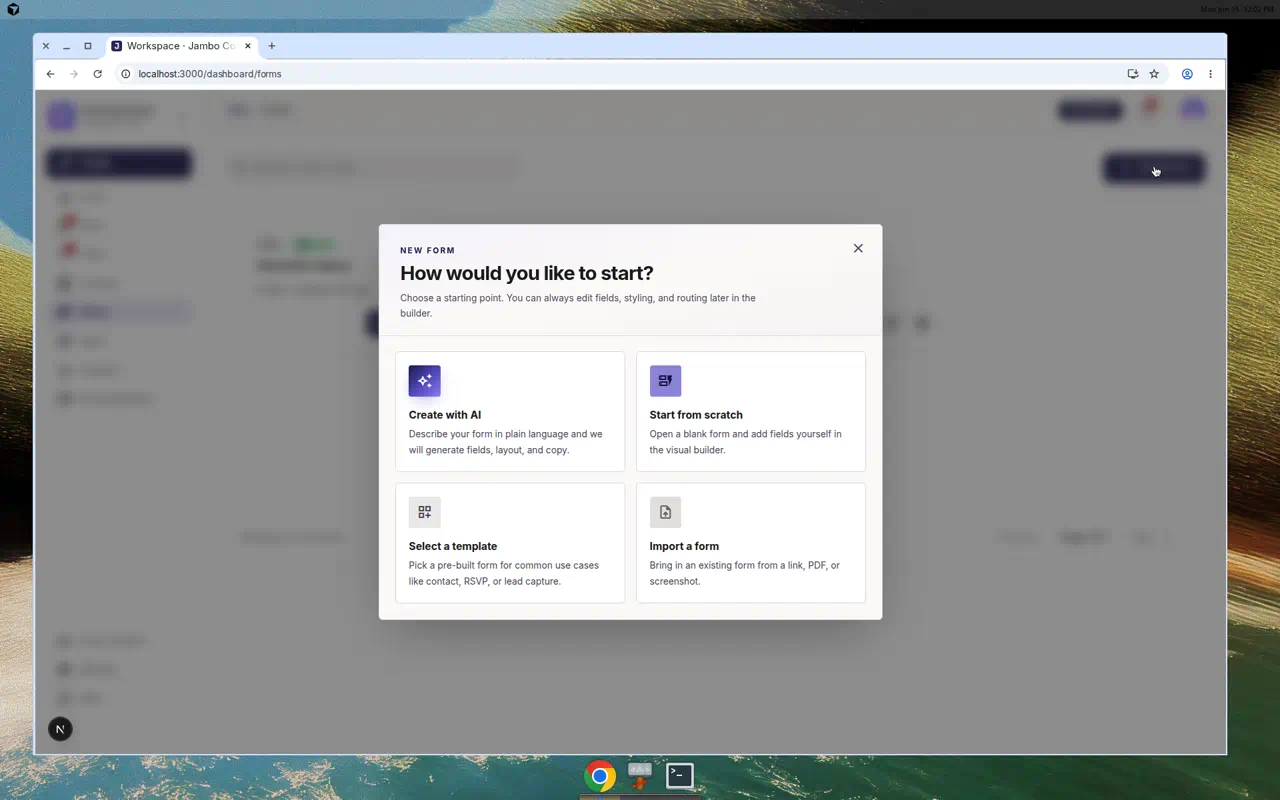
The four ways to start a form: with AI, from scratch, from a template, or by importing an existing form.
Forms are how you capture inbound leads. Every submission lands in your inbox as a conversation. You can run a separate form per client, campaign, or offer.
Start a new form
- Go to Forms in the left navigation.
- Click Create form. A "How would you like to start?" dialog appears with four options:
| Option | Best for |
|---|---|
| Create with AI | Describe the form in plain language and let Jambo generate fields and copy. |
| Start from scratch | A blank builder you fill in field by field. |
| Select a template | Begin from a pre-built form and adjust. |
| Import a form | Recreate an existing form from a link, PDF, or screenshot — see Import a form. |
- Pick an option to open the form editor, where you build fields, design, and configure automation.
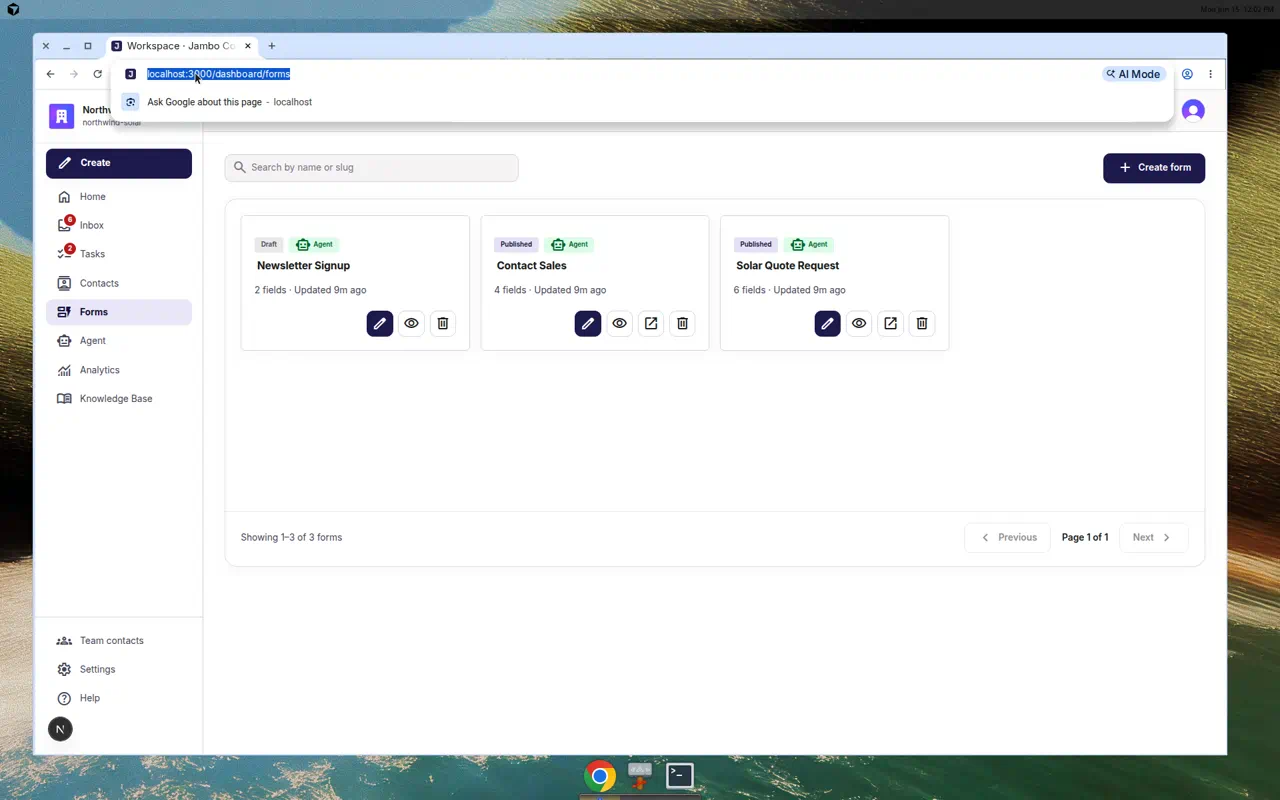
Find and manage existing forms
- Use the Search by name or slug box to filter.
- Each form card shows status badges (Draft, Published, Archived), an Agent badge when agent actions are enabled, the field count, and the last updated time.
- Per-form icon actions: Edit form, Test and preview live submission, Open live published form (published only), and Delete form.
Deleting a form asks for confirmation ("Delete this form?"). Submissions already received stay in your inbox.