Set up agent automations (per form)
Use a form's Routing and Automation tabs to score submissions, route them to the right teammate, and send AI-drafted first-touch replies.
Each form has its own AI behavior, configured in the form editor under AI Agent Settings. There are two tabs: Routing (who/what handles a submission) and Automation (what gets sent automatically).
You must save the form as a draft before you can save agent settings. If you see "Save the form as a draft first…", click Save, then return to these tabs.
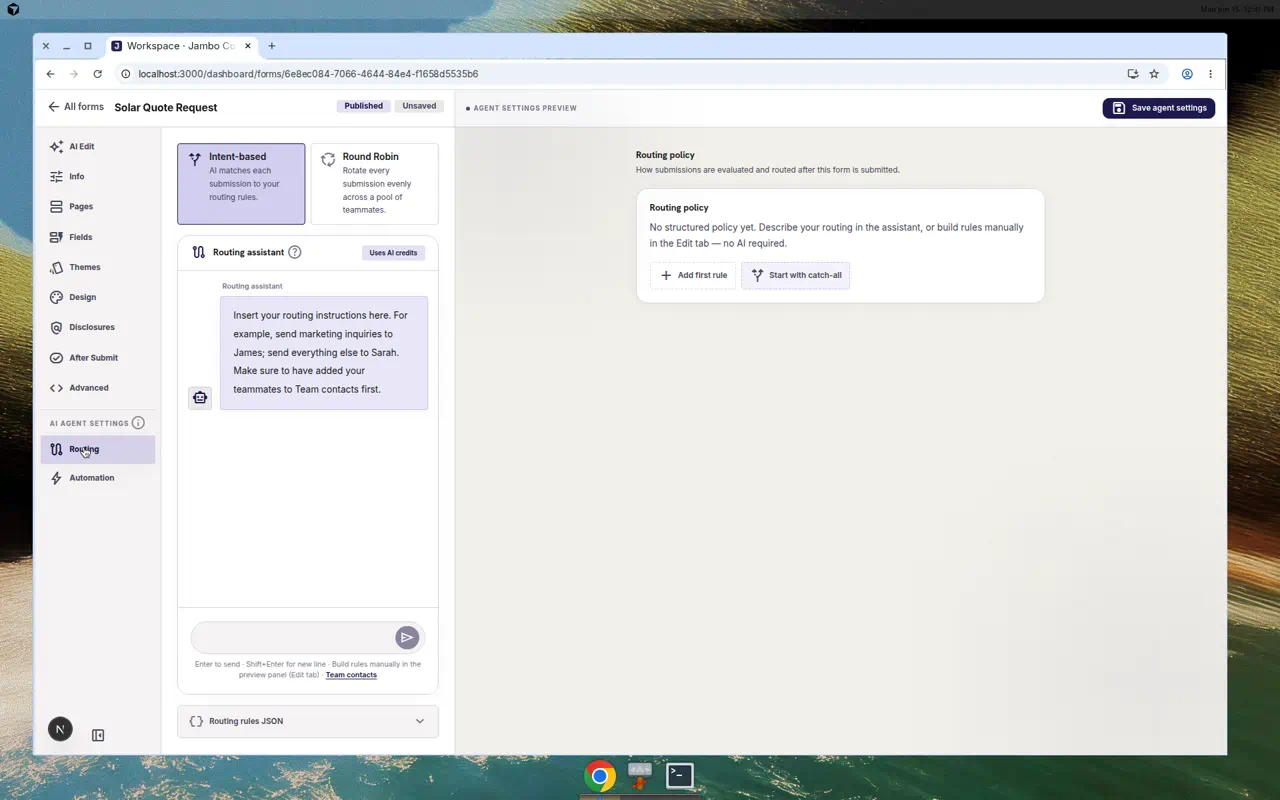
Routing tab — decide who gets the lead
- Open the Routing tab in the form editor sidebar.
- Choose a Routing mode:
- Intent-based — "AI matches each submission to your routing rules." The agent reads the submission and chooses the best target/action.
- Round Robin — "Rotate every submission evenly" across selected people.
- For round robin, tick the Round Robin members (pulled from your Team contacts).
- Use the AI routing chat to describe your rules in plain language (e.g. "Send enterprise enquiries to Sam and mark them important"). The preview panel shows the compiled rules.
- Click Save agent settings in the preview panel.
Routing targets are your Team contacts (the internal directory), not your billing seats. Add people there first so routing has someone to choose.
Automation tab — decide what's sent automatically
The Automation tab controls replies and enrichment for this form. The settings are grouped into a master switch followed by three sections.
Enable agent for this form (master switch)
At the top of the tab is Enable agent for this form. This is the master switch for everything below it:
- On (default): the inbound agent runs for submissions on this form — scoring, routing, and any replies you enable.
- Off: submissions are stored in the inbox only. There is no AI scoring, routing, or replies for this form, and every setting below is disabled until you turn the agent back on.
Turn the agent off when you want a form to act as a plain collector — submissions still land in your inbox as conversations, you just handle them manually.
First touch
| Setting | What it does |
|---|---|
| Send first-touch automatically | The agent sends an immediate first reply when a submission arrives (uses AI credits). When off, it drafts the first-touch reply for human review instead of auto-sending. |
| First-touch email template | Pick a template (Select a template… / No template). Manage templates from the linked Manage email templates. |
| CC routed team member / Reply-To routed team member | Copy or set reply-to as the routed person. |
AI Reply Agent
Controls thread replies after the first touch. Short acknowledgments like "thanks" are ignored, and the limits apply per conversation and contact email, resetting on a new form submission or inbound query.
| Setting | What it does |
|---|---|
| Allow automatic follow-up replies | Let the agent continue the conversation automatically. |
| Max auto-replies per thread | Cap how many automatic replies are sent in one thread. |
| Cooldown (minutes) | Minimum gap between automatic replies. |
Agent capabilities
Optional tools the inbound agent may use while handling submissions.
| Setting | What it does |
|---|---|
| Allow agent to use knowledge base | Ground replies in your Knowledge Base. |
| Enable lead enrichment | Enrich the lead with additional data. |
| Extract tasks from inbound messages | Auto-create Tasks from messages. |
(screenshot or media)Automation tab with the Enable agent master switch, first-touch, AI Reply Agent, and agent capability toggles
A sensible starting recipe
- Enable agent for this form: on (leave it off only for plain collector forms).
- Routing mode: Intent-based.
- Send first-touch automatically: on, with a friendly template.
- Allow agent to use knowledge base: on.
- Allow automatic follow-up replies: off at first — review drafts in the inbox until you trust the tone.
After a week of real submissions, add priority rules for the field values that actually predict revenue, and consider enabling follow-ups.
Direct email that arrives without a linked form is automated separately — see Email automation & routing.
More in AI agent & automation