Publish and embed a form
Publish your form, then share the hosted link, embed it on your site (script, iframe, WordPress, popup), or distribute via QR, email, and PDF.
Publishing makes a form live at a public URL and unlocks the share/embed options. A form must be published (not just saved as a draft) before real visitors can submit it.
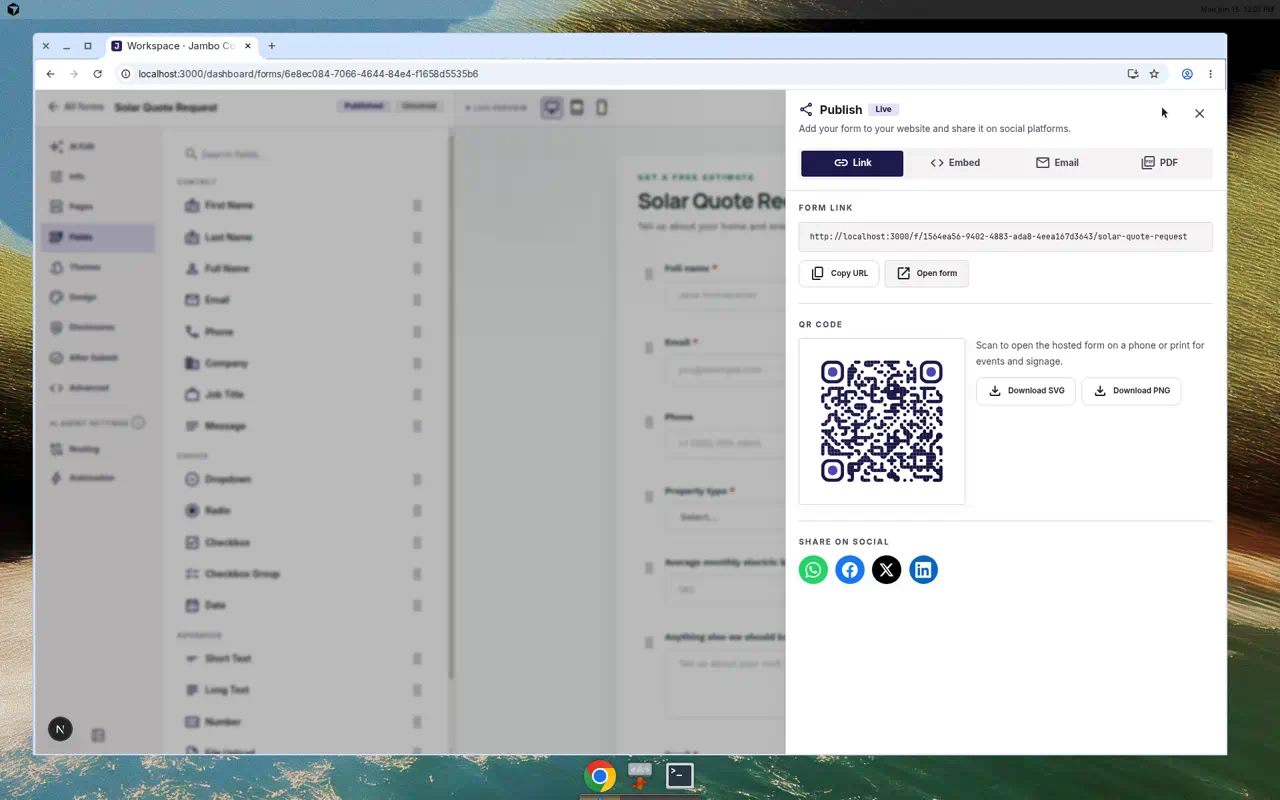
Publish your form
- In the form editor, click Publish.
- If you have not configured agent options, you may see a prompt ("Looks like you forgot agent options") with Set up agent options or Publish anyway.
- The Publish drawer opens. Click Publish form to take a draft live. The badge switches to Live.
Already published? The button reads Share and opens the same drawer so you can copy links and embed code at any time.
Share and distribute (Link tab)
- Copy the Form link with Copy URL, or click Open form to view it.
- Generate a QR code for print or events.
- Share on social — WhatsApp, Facebook, X, and LinkedIn.
- If the form allows agent submission, an Agent instructions URL is also available.
Embed on your website (Embed tab)
Choose an embed style and click Copy code:
| Style | Use when |
|---|---|
| Embed script | Standard inline embed for most sites. |
| iFrame | Maximum isolation; works almost anywhere. |
| WordPress | A snippet tailored for WordPress pages/posts. |
| Popup | Opens the form in a modal triggered from your page. |
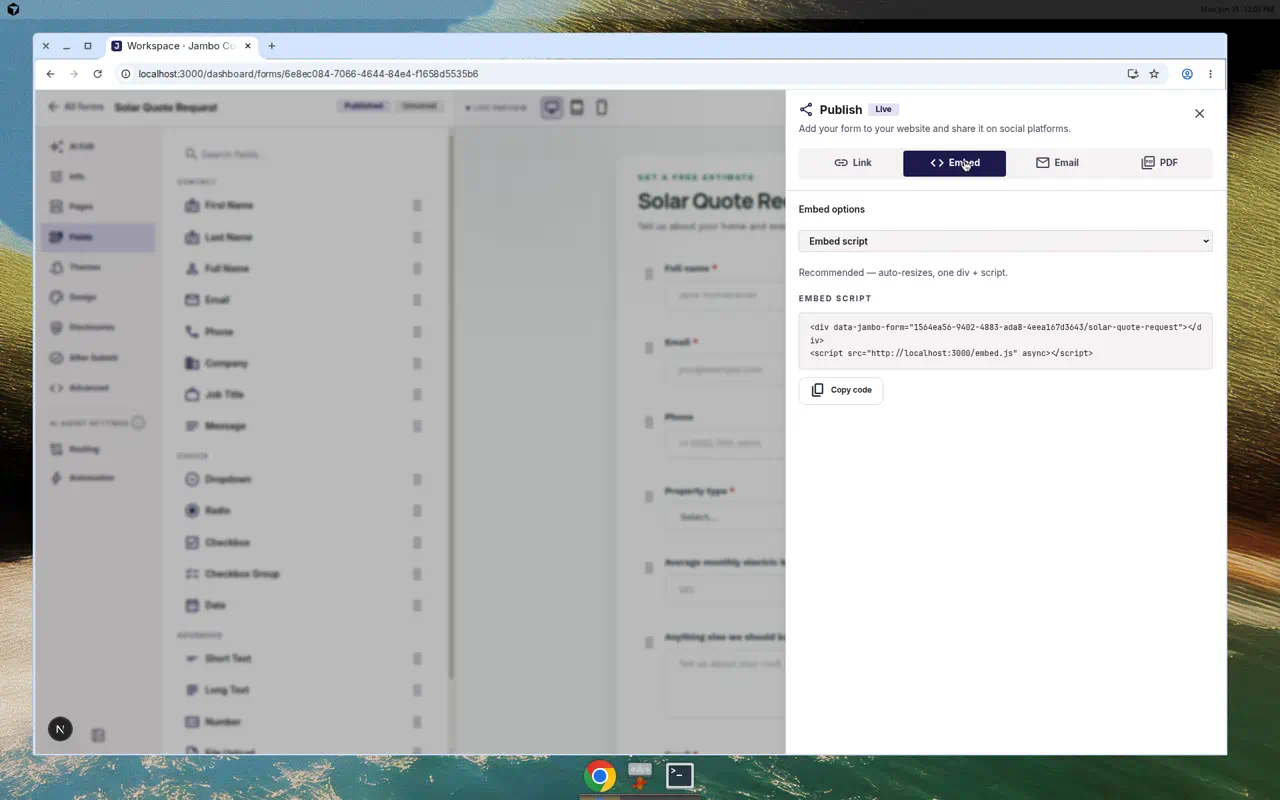
Other distribution
- Email tab — open the form link in your email app to share directly.
- PDF tab — Download PDF of the form for offline or attachment use.
Verify it works
After embedding, submit a real test entry (or use Test & preview in the editor) and confirm the conversation appears in your Inbox. Then turn on the embed on your production page.
More in Forms