Use the inbox
Triage form submissions and email in one queue, set priority, assign teammates, review AI drafts, and send replies.
The Inbox is a single queue for all inbound demand — form submissions and email — represented as conversations.
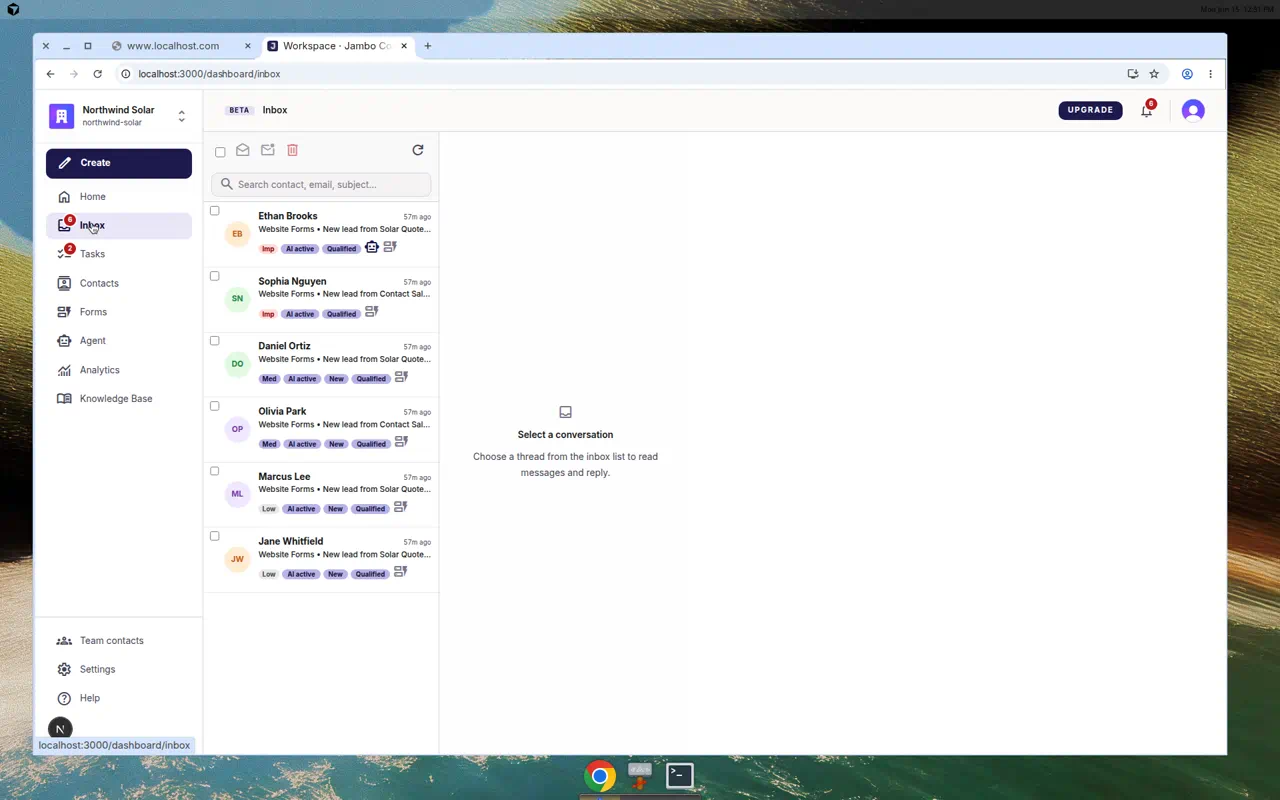
The inbox list
- Search with "Search contact, email, subject…".
- Each row shows the contact name, a message preview, a priority pill (Low / Med / Imp), badges (New, lead stage, agent activity, a web-form icon), and a timestamp.
- Select rows to use the bulk bar: Mark read, Mark unread, Delete (with confirmation).
- Refresh inbox pulls the latest.
Click a row to open the conversation.
Inside a conversation
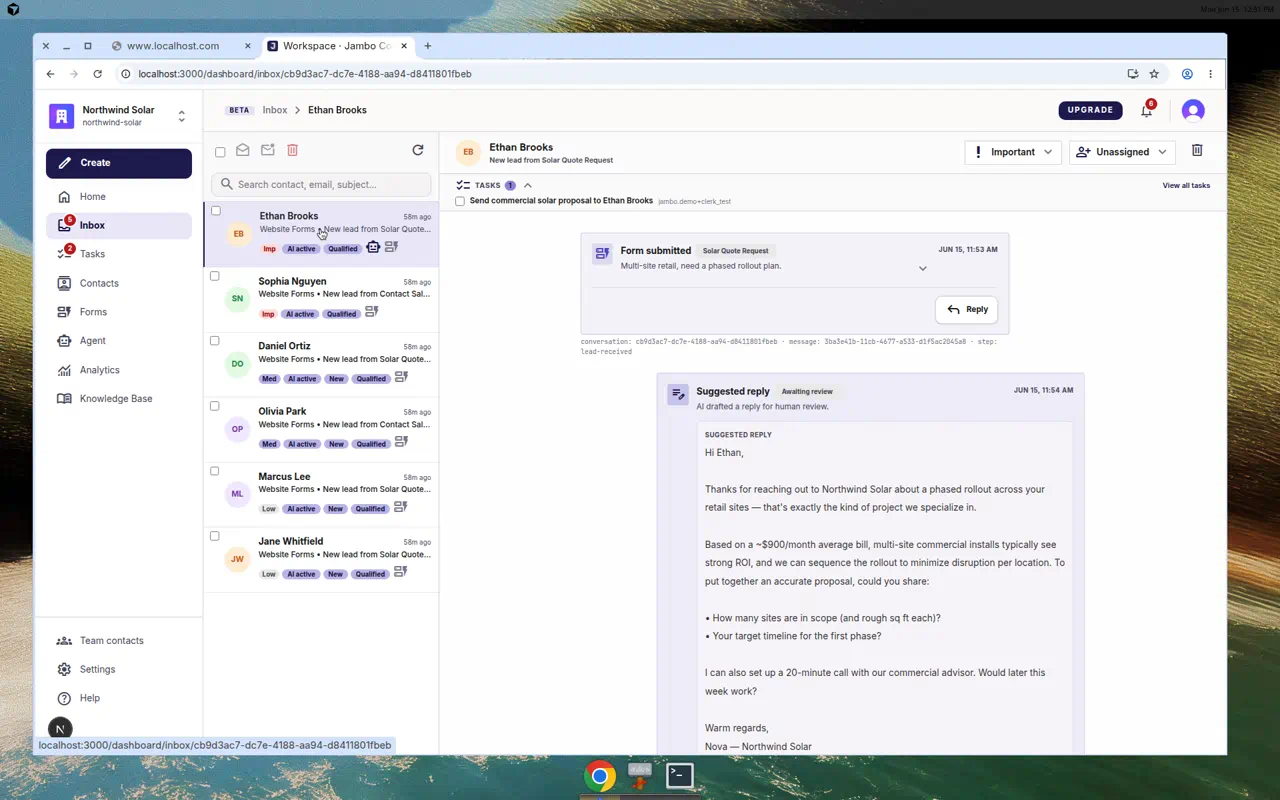
The header lets you:
- Open the sender drawer (contact details) by clicking the contact name.
- Set Priority — Low, Medium, Important.
- Assign to teammate (default Unassigned); search by name or email, or Clear assignment.
- Delete conversation.
The timeline shows everything that happened: Form submitted / Lead received, Lead scored, routing events, Knowledge base consulted, Suggested reply (badged Awaiting review), and send events (First touch sent, AI reply sent, Reply sent). Opening a conversation marks it read.
Replying
- Click Reply (on the conversation or an inbound message).
- The composer shows "Reply will be sent to {email}".
- Write your message, or click Use AI to improve to refine a draft.
- Click Send, then confirm ("Send this reply?" / Send email).
When the agent has drafted a reply for review, you'll see a Suggested reply entry marked Awaiting review. Open it, edit anything that needs a human touch, and send.
Tasks in context
A tasks panel can appear above the conversation feed, linking Tasks to this conversation so follow-ups don't get lost.
More in Inbox, contacts & tasks